Decorative fluorescent light diffusers

SkyscapeFluorescent light diffusers are those plastic panels that cover the fluorescent tubes in the ceiling of your office or cube. The clever folks at Sky-Scapes have created some cools scenes to add a little fun and/or beauty to that space above your head.

You can get blue sky with clouds; jets streaking across the sky; ocean scenes that make it appear you are under water… or you can have your favorite Dilbert character peering down at you.

Not sure I can get approval for my office but I’ll post a photo if I do.

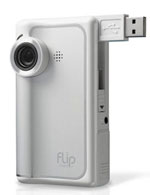
Flip Video from Davos08

Flipvideo
Jeff Jarvis is attending Davos08 (a “World Economic Forum), where “small video cameras are the hot thing,” and he’s posted a short video clip (with the editor of a big German newspaper) he (Jarvis) shot with one of the little FlipVideo cameras.

These things –which are cheap and the video isn’t too bad– seem to have been designed for making it easy to shoot video and put it up on the web. The camera even has a little flip-out USB connector you just slot into your computer.

From the image on the website, it looks like there are just three buttons on this thing. I was skeptical until I saw the video Jarvis posted. If you’re looking for something easy and fun, this might be it.

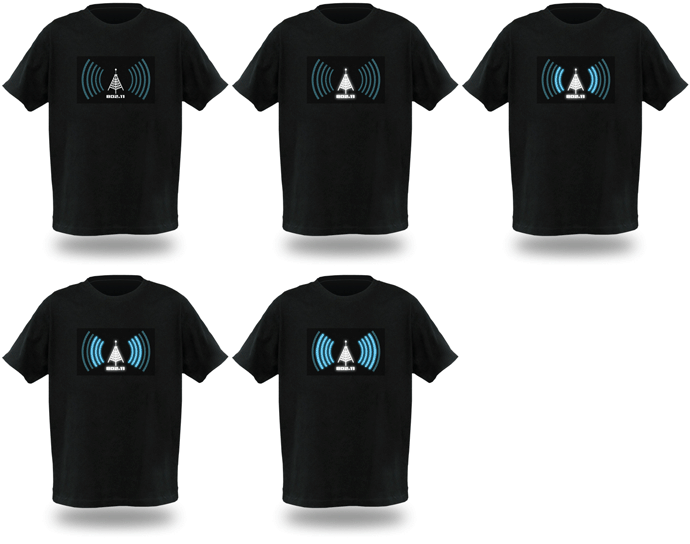
WiFi detecting T shirt

Wifi_shirt_anim
I fear it’s a bit late for this holiday season, but this WiFi detecting T shirt would make a great gift for that geek on your list. Not only finds WiFi signals, but displays the strength.

Runs about $30 and you can remove the electronics for washing, although that wouldn’t be much of a problem for the people on my list.

Spotted this at Keith Povall’s Sturdy Soapbox.

World’s smallest indoor radio-controlled airplane

“The Butterfly” and it is billed as “The Living Room Flier” a full radio controlled mini plane you can fly around your living room. “Full Proportional radio control enables you to fly with precision in any room 12′ X 16′. Just add 4-AA batteries to the combination transmitter/charger and you’ll be ready for action anytime Take the Butterfly with you ANYWHERE in it’s own protective aluminum briefcase (included!). The Butterfly costs $239 and it would take Lucy about 2 seconds to shred it.

Mac OS X Leopard Installation

I remember when installing a new operating system took a huge stack of 3.5 inch floppies (or 5.25 inch floppies!). And a lot of time. But what was really needed back then –at least by me– was patience and courage.

You knew to a near certainty that your computer wouldn’t work at the end of the process. Or some of your applications wouldn’t work or you’d spend hours tracking down and installing drivers.

Somewhere along the way, I stopped upgrading my computers with new operating systems and just purchased a new computer with the newest OS already installed. An expensive solution.
Osx
So I have had mixed emotions about the new release of Mac OS X (Leopard). Lots of new features I’m eager for, but trepidation. My plan was to wait until my Mac sensei, George, had time to do the installation.

On Saturday he informed me that this was something that I could do. Back up my data, and stick in the installation DVD.

I took the added precaution of burning my photos and music to DVD and then (with hunched shoulders and squinted eyes) slipped in the installation DVD for Leopard. Less than an hour later, the new OS was running and –so far– nary a problem.

I won’t bore you with my early impressions of the features of this new system. The web is swarming with those. I will share one thing…

Time Machine is the new backup/restore application that comes with Leopard. So I bought a new external HD, plugged it in, and let Time Machine make another full back up of my computer. It will update that back up every time I connect the laptop and the drive.

The real test of any such app is the restoration. When the time comes I need to recover a file or –god forbid– the entire contents of my computer. Let’s hope that’s off in the future. But it’s a pretty slick tool and so easy to use, I will.

But the installation was as advertised: slot the DVD and take a nap.
Another happy iPhoner

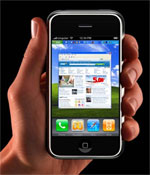
Iphone150I’ve known Marhall Wilson since he and Barb started working together at the same law firm (Marshall has recently moved on). If I had to guess, I’d say he’d be better at fixing a broken generator than partitioning a hard drive. I don’t think he’s goofy for gadgets like many of my acquaintances.
So when I heard he’d purchased and iPhone, I was curious about his experience to-date:

I carried a Treo for several years. The Treo was my introduction into
“smart phones.”  I was instantly hooked on the mobile email and internet
access. Following the recent death of my Treo 650, I purchased a Blackberry Curve.  I was unsatisfied with the screen size and quality. I missed the touch screen feature, and I never became comfortable with the “roller ball” navigation.

I was hesitant about the iPhone because (a) I do not need or use an iPod, and (b) I had read that the iPhone wasn’t well suited for “business” use.  The screen quality plus the way the different applications worked together was the big seller for me.

I purchased my iPhone on the 20th (I’m writing this on Thursday the 25th) so it is still new to me. I am thrilled with it.  Our computer tech guy set it up so that the device will reach out and retrieve my emails every 15 minutes.  This is more than satisfactory for me.  The screen is just stunning.  The following are some of the pros and cons
in my opinion and in my limited experience:

  • Pro:  did I mention that the screen quality is stunning?  Viewing videos, photos, and websites is a pleasure.
  • Pro:  I love the built-in Google maps with the satellite photos.  The
    clarity of the screen, with the easy zooming in and scrolling around
    make the map feature fun as well as useful.
  • Con: no GPS.
  • Pro: safari, the web browser, is great.  Being able to open 2 or 3 or
    ?? Web pages at a time is great.  It is happy to show you the whole
    page (too small to read) and then zoom in to whatever field you wish.
  • Pro: the way it will switch from vertical to horizontal mode while viewing photos or the internet is great.
  • Con:  If you take a photo vertically, you can get whiplash trying to
    rotate the device to look at it sideways because it will automatically
    adjust itself to the new orientation.  Perhaps there is a way to lock
    out the rotation, but I haven’t found it yet.
  • Con: the internet reception in my house is worse than with the Treo or
    Blackberry, although phone reception in the same location seems fine.
  • Pro: Out in the real world, internet pages load plenty fast enough for me.
  • Con: the virtual keyboard is as bad as you’ve read about, although I’m
    learning.  I wouldn’t want to “have” to be typing lengthy emails all
    day.
  • Con: no zoom or video on the camera, although I never used the Treo’s video camera all that much.

Overall, I love it, and I haven’t even utilized the music piece of it. The phone, internet, email and text messaging features are as good as or better than the Treo or Blackberry. Having YouTube, Google Maps, and a simple weather site resident on the device is great fun. Having only 1 button is plenty. I should also mention that the screen is really impressive.

Saying goodbye to Outlook

Back in the late 80’s I discovered a little computer application called ACT. It was a DOS app at the time. A year or so later, I purchased the first Windows version while at Comdex. I used ACT for everything for several years. As our company migrated to MS Office, I moved over to Outlook and have been there ever since.

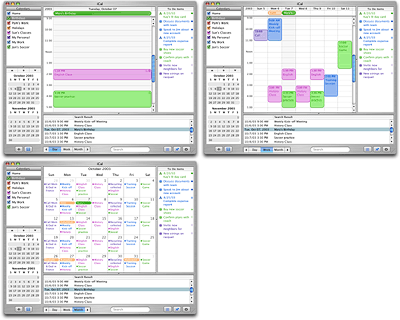
Dwm20050412Over the last week I’ve been moving my digital life from Outlook to the Mac. XP is running great on the iMac, so there was no reason I had to switch but I’ve grown fond of iCal, Mail, Address Book and the other OSX tools.
Don’t get me wrong, Outlooks is a great program. And powerful. But it just feels… cramped and busy to me now. So, I’m spending even less time on Windows at work. I jump over to use Internet Explorer from time to time but that’s about it.

It might just be the result of packing up and cleaning house, but for the first time in years, I  have an empty in-box. Stuff comes in, I deal with and zap it. Very liberating.

Speaking of things Apple, while in St. Louis yesterday, Barb stopped by the Apple store and did a little window shopping. She’s still on board for a MacBook. Stay tuned.

iMac Update

I’ve done my share of gushing about the MacBook Pro and, more recently, the beautiful new iMac. So it’s only fair I share some of the rough spots I’ve encountered the last few days.

Firefox is crashing like crazy on OSX. Almost unusable. Same for Photoshop. Not sure what’s happening but look forward to getting it sorted out.

Phil has me set up with XP running on VMware and I’m suffering from mild schizophrenia, trying to move back and forth from Windows (for Outlook, mostly) and OSX. I finally just closed the win version of Outlook and started getting email via the Exchange server (when I could keep Firefox running).

I’m sure I’ll get the hang of this but trying to live in both worlds is challenging. Once we get the crashes under control (I know, I know)… I plan to spend as much time in Mac Land as possible and I’m hoping that makes things easier.

But I’m in for the duration. My experience on the MacBook Pro has been delightful and I’d like to have that warm glow at work, too. That’s gonna take some fiddling and some mental adjustment on my part.

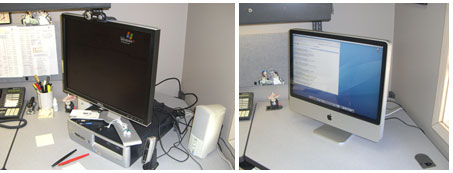
iMac before and after

Help Desk Eric installed my new iMac (24 inch) yesterday. Getting the iMac at work was one of Life’s Pleasant Little Surprises. Phil (our head IT guy) came me a few weeks ago to let me know I was up for a hardware refresh and gave me the option of an iMac. I almost said no.

Learfield COO Roger Gardner opted for an iMac and that –I suspect– paved the way for me. As far as I know, we’re the only two in the company with a Mac on the desktop.

This is an example of what a great IT department we have a Learfield. Instead of taking a we-only-do-Windows stance, they’re open to trying something new. In my case, it makes a lot of sense, because most of the stuff I do can be done a little easier/better on the Mac than the PC.

I still have Windows XP running (on VMware). This means I have to adapt to sliding back and forth between Windows and OSX. It’s gonna take some getting used to.

The iMac is a magnificent piece of hardware. Feels more like a piece of sculpture than a machine. But we won’t go there.

The Office-Cam is down for now. Maybe for good. I’ve got a PC in the office as well and once we get it back online, I might turn the Office-Cam back on.

I’m looking forward to doing some video chats with those of you who have the capability and interest. Email me and I’ll send my AIM name.

What else… Oh yeah, the new iMac keyboard. I love it. Didn’t think I would be it feels great and works well.

So there you have it. Two operating systems running on one sleek device. Best of both worlds. Stay tuned.

nano upgrade: A+

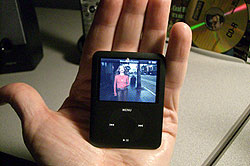
Nano_video250The new iPod nano looked great at the product launch up on the big screen behind Steve Jobs. It looks great on the Apple website. And it looks great in the TV spot. But it looks/feels/smells even better in my hot, sweaty little hand.

How does video look on that wee screen? Amazing. I keep turning the nano over, tying to figure out how something that thin can play sharp, bright, crisp video.

I’m looking forward to watching more video podscasts and maybe a TV show or two.

In closing, a word about the iPod UI. I thought it was damn near perfect before but I must say they’ve improved it.