Blab-o-meter

From my “Apps I’d Like to See” folder. Begin by letting Blab-o-meter sample your voice by recording a short paragraph. The audio is analyzed up in the cloud and sent back to your device.

As you and a friend settle in at your local coffee shop, you turn on Blab-o-meter and it begins monitoring how much you are talking. You can set the app to alert you by vibrating and or playing a sound (a throat clearing; “shhhhh!” etc) when you exceed some predetermined level. 50 percent might be reasonable or, if you’re trying to listen more, set it lower.

I spend a couple of hours in a coffee shop, six days a week. Usually by myself. I’m usually absorbed in what I’m reading or doing but I sometimes become aware of how much some people dominate a conversation (if you can even call it a conversation when one person is talking continuously and the other person doesn’t say a word. I’m being literal, here).

Let me hasten to add, this might be a very acceptable arrangement for both parties. One likes to talk, one likes to listen.

Until the Blab-o-meter becomes a reality, I’d like to ask my friends and acquaintences to give me some sort of visual cue when I start running off at the mouth. Perhaps two quick tugs of your earlobe (repeated as needed). Or, you might simply reference this post, “Hey, I thought your Blab-o-meter app was a great idea!”
Put it in the vault with 1Password

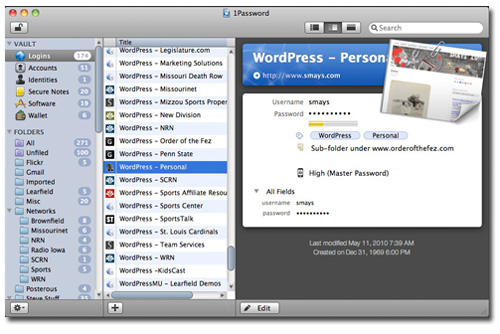
I keep up with a lot of passwords. Between WordPress, Twitter, flickr, Gmail, FTP accounts, etc for company and client websites (and my own)… 200+ logins. You have to have a secure way to manage all of this.

I’ve been use an app called Wallet for the last couple of years but recently purchased 1Password (on the solid recommendation of my Mac mentor, George).

I won’t attempt to list the features. There are too many and I’m still new to the program. But it’s as beautiful as it is functional. All my stuff is sync’d via the cloud so I can access from all of my computers and devices (iPhone, iPad, etc). Everything in one place, behind some really good encryption. They make it easy to be smart about my data.

1Password costs about $40 but it’s worth every penny. Mac and PC.

Kindel Book Reader for the iPad

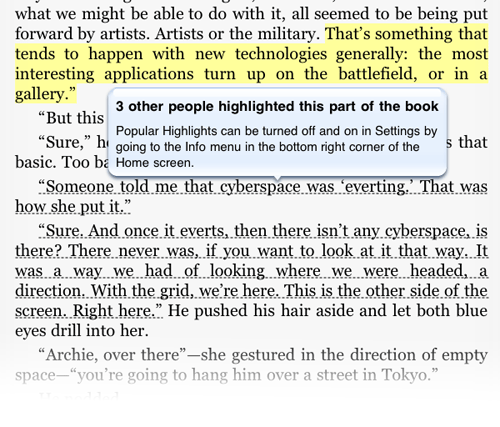
I plut the Kindel book reader on the iPad because I couldn’t find the title I wanted for the iBook. But it works fine and while re-reading William Gibson’s Spook Country, I discovered an interesting feature.

I highlight or underline passages in paper books and the the ebook readers make this nice and easy. In the example below, I highlighted a line in yellow. Curious about the dashed line under the next paragraph I clicked and got the little explanation bubble.

This feature can be turned off but I think I’ll leave it on for now. Obviously I have at least one thing in common with those other readers: this book. Interesting to see what passages they find noteworthy.

Scott eVest (not as nerdy as it sounds)

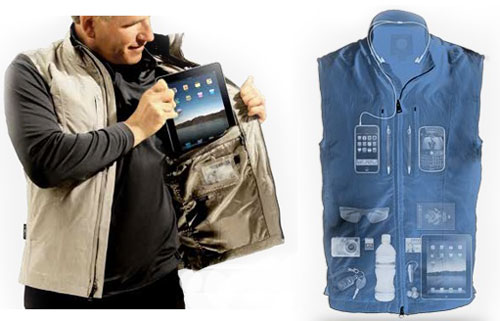
I carry a camera, iPhone, keys, reading glasses, ballpoint pen, and sometimes a wallet (I don’t like carrying it in my hip pocket). They fill up a sport coat and then some. So when I saw the Scott eVest, I had to have one.

I’ve had it a couple of days and I’m still finding pockets. This line of clothing is designed for for folks with lots of gadgets. And while the pocket depicted above was not designed for the iPad (as far as I know), it fit perfectly.

Minnesota school replacing text books with iPads

The Gibbon-Fairfax-Winthrop (Minnesota) School Board approved $265,000 to purchase 230 iPads for students, upgrade all school buildings with Wi-Fi and provide technical training for everyone starting next year.

Apple Computer is providing the school with some assistance. If this works out, the school in Winthrop could become a model for the nation. Bet this isn’t the last time we see this.

Think of the possibilities.

Tests are on PW protected website. Software could determine right/wrong answers on the T/F and multiple choice questions. Huge time saver for teachers. Parents could see student’s answers to help them.

Week One impressions of the iPad

It’s been a week since we got our hands on the iPad and I must say I am very impressed with the device. I use the term “device” becuse it doesn’t feel like a computer. Or a PDA. Or anything else I’ve used. I honestly believe this is a new… thing.

One of the more interesting things I observed this week is how people physically relate to the the iPad. Let me see if I can explain by describing something that almost never happens.

Woman A is sitting in a coffe shop with her laptop computer in front of her and Man B comes over and says, “Is that the new (insert name of computer here)?”

“Why yes, it is. Would you like to try it out?”

“If you don’t mind…”

(She gets up, the man sits and begins to open her programs and files and poke around)

Never happens. But a common occurance this week with the iPad. Part of this is just the size and shape. Like a book or magazine, small enough to pass back and forth.

And part is the intuitive user interface. Even if you’re not an iPhone user, most folks find the one button that turns the iPad on (instantly!). Then it’s just tapping the icons and off they go.

And I found myself demo’ing the iPad while standing. Again, something that never (rarely) happens with even the smallest net book.

I encountered the normal sort of anti-Apple resistance from techies:

“So what does that thing do that I can’t do on my laptop?” (Arms folded in convince me defiance)

Non-techies were more inclinded to say, “Ooh. I want one. How much?” …after playing with it for 5 minutes.

I ran in to a couple of closeted OCD’s that couldn’t bring themselves to touch to screen because they could see the fingerprints of those that had touched it before them. Explaining that everything-has-fingerprints-you-just-don’t-see-them did not help.

It was a fun –if less productive– week. And each new app brings fun and discovery. And I have no doubt we will quickly find ways to use the iPad on the job. Seems to me it could easily replace a lot of the laptops our sales staff and reporters are lugging around. Time will tell.

Custom icons for the iPhone

When you bookmark a website with the iPhone’s Safari browser, it gives you three options: 1) just add the bookmark, 2) email a link to that page or 3) add an icon to the home screen of the iPhone (which has become valuable real estate).

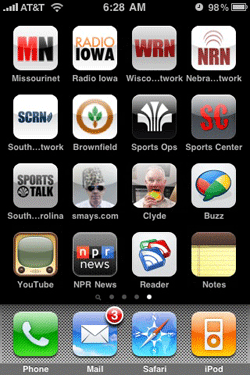
I forgot how simple it is to create a custom icon for your website. If you iPhone users choose #3 above for smays.com, you will get an icon like the one in this screen capture.

It just makes it a little easier to get to a page than opening the browser and going to bookmarks.

One in five docs plan to buy an iPad

“The scenario sounds straight out of a sci-fi movie — the doctor pulls out her touch-screen tablet computer from the drawer of instruments. She calls up the patient’s chart with a few taps and proceeds to add a note to the page with her latest diagnosis. A visualization pops up, and she flips the screen over to give the patient an idea of what ails him.

Doctors are presuming the iPad could make this scene a reality as soon as next week. One in five doctors say they plan to buy an iPad, according to a survey of 350 clinicians by the San Mateo medical software vendor Epocrates.

Full story at LATimes.com