During my working years I always had ready access to good recording equipment. This came in most handy when recording interviews by phone. Good telephone hybrids are expensive but make a big difference in quality.
Since retiring, I’ve used various tools for this task. I’ve mentioned Call Recorder for FaceTime which works well if both ends are using Mac gear. Years ago I tried Audio Hijack but found that glitchy. Probably a user issue.
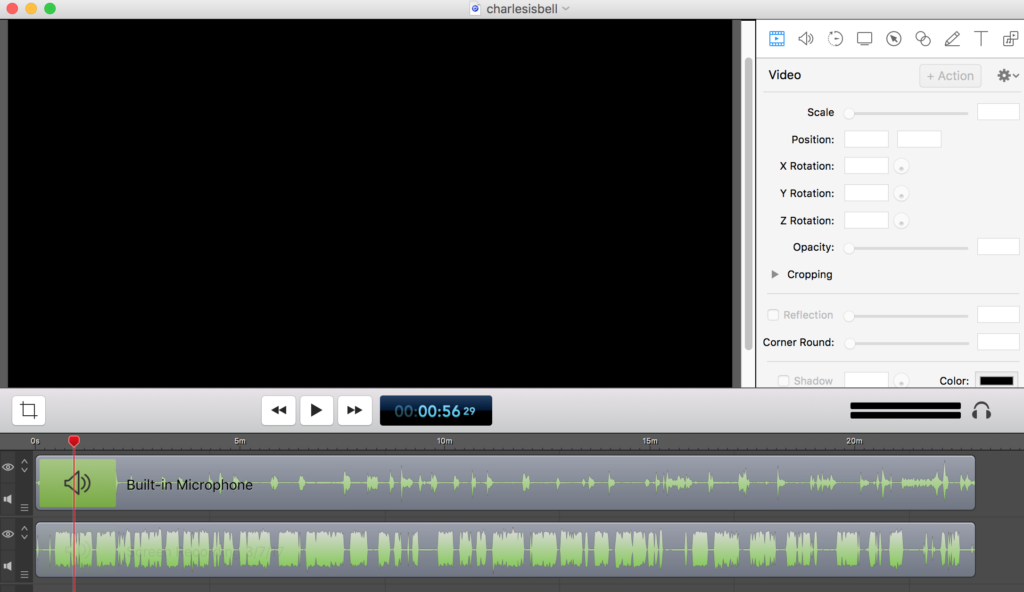
Yesterday I tried a different setup. I made the call via Google Hangout and recorded the audio with ScreenFlow. I use ScreenFlow to record screencasts but found I could simply turn off the camera and capture the audio. I was pleasantly surprised with the result. ScreenFlow captured the audio in two channels so it was easy to tweak the audio for each. There might be better ways to skin this cat but this is the best combination of easy and quality that I’ve found.
I was going to wait a few days before sharing any thoughts on my new Bluetooth headphones but I’ve been so impressed by the initial experience I’m going to share a few first impressions.
I thought the regular Apple earbuds sounded fine but the audio quality of the AirPods is noticeably better. A lot better, IMO. Maybe a 25% improvement?
Lots of folks complain about how earbuds and the new AirPods feel in their ears. Never a problem for me. I kept them in for an hour two last night and they were so comfortable I forgot they were in. I felt no movement when shaking my head vigorously or jumping up and down. I have no concern about them falling out. I have no doubt I’ll be wearing (?) these more than the wired earbuds.
On that point, I was surprised by a new sense of freedom from the wire. (Like I said, this is my first experience with Bluetooth phones) Not having that little wire against my cheeks or snagging on a shirt button changes the experience far more than I would have expected. In a way that I can’t explain, the music feels like it’s in my head, instead of in my ears.
Phone calls – Barb says I’m much easier to understand on a call (compared to just talking on the iPhone). I think this might be the result of ambient noise filters built into the system.
Voice-to-text works great, even when speaking in lower-than-normal speaking level.
Still trying stuff (Siri commands/inquiries, etc) but these are keepers. Will it fundamentally change how I interact with the technology? To be determined.
My friend Jason shared this photo taken at a Cub Scout meeting where the scouts learned how to use a landline telephone. He insists some of them had never used one. What’s to learn, you ask? What’s a “dial tone” and why do you have to wait until you hear it before dialing the number.
What sort of doomsday scenario would find a youngster… and all of his/her friends… without a working mobile phone? It could happen, I guess, but good look finding a “pay phone.”
Will Eagle Scouts someday earn a badge for learning how to drive a non-autonomous vehicle? Many laugh at the idea, but it seems plausible to me that a child born today will never “drive” a vehicle except in some theme part or VR environment.
Confide is a messaging app with which you can “Communicate digitally with the same level of privacy and security as the spoken word. With encrypted messages that self-destruct.” I installed the app on my phone a few day ago after seeing a story about how it has become popular inside the Beltway.
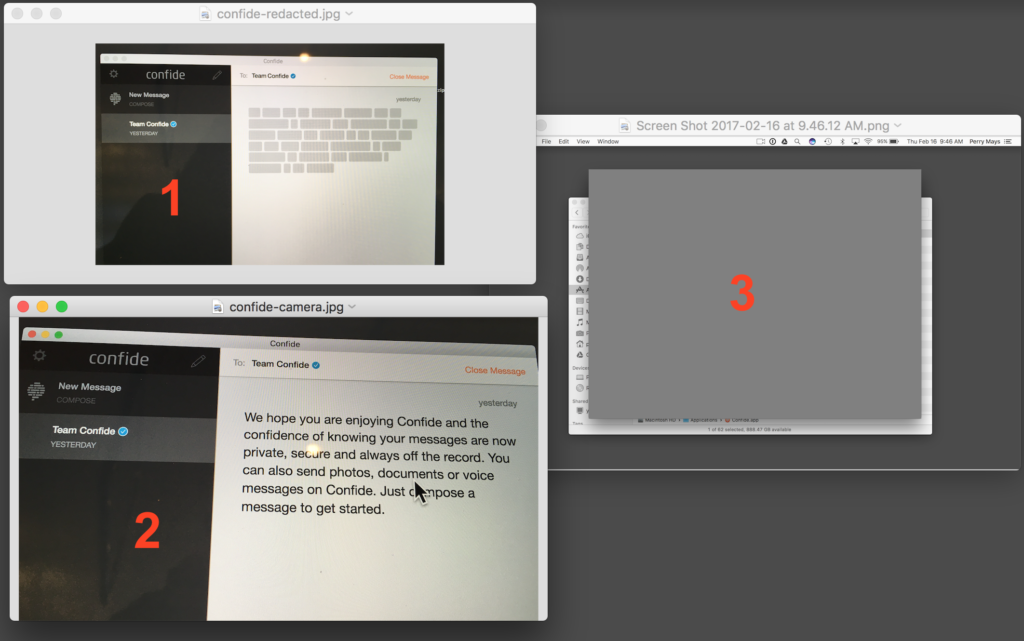
The folks at Confide sent me an email letting me know they have a desktop version, which I installed on my Mac this morning. In the screenshot below, image #1 is what you see when you get a message. #2 is what you see when you move your cursor over the text.
Security? I don’t think so. I’ll just do a screenshot of the clear text. (click) Image #3 is what showed up on my desktop. Hmmm. The only way I could capture the text was to use my iPhone to snap a photo of my monitor. Pretty clever.
The screencast below is about one of the under-the-hood features of WordPress. So it’s going to be of zero interest to anyone who doesn’t have (or has had) a blog or website using WordPress as the content management system.
WP is great for searching. I have 5,000 posts going back 15 years but if I can remember a word or phrase, WP will find all references in a matter of seconds. If you include media (photo, video, audio) with your post, WP puts it in the Media Library. I had more than 1,600 pieces of media in my library but I couldn’t search because I hadn’t taken the time to give the media a useful name or any other metadata. This 6 minute screencast shows how I cleaned that up and why.
As I’ve experimented with various online tools for managing media (iCloud, Google Photos, Flickr), I’ve found myself drawn back to my WordPress blog. Let me hasten to point out almost nobody visits my blog. That’s been true since the beginning. It’s always been more journal/archive.
But when I put images online, I try do so in some context. If I have 50 photos of my mother as a young woman, I’d rather include those (as a slideshow or gallery) as part of blog post that might include links to other posts and images. You get the idea.
For me, the stories behind the images (if I know them) are as important as the images themselves. A blog works well for this. And because it is self-hosted, I don’t have to worry that Yahoo! or Google or Facebook might one day kill it.
Kevin Kelly points us to an interesting piece on bots by John Borthwick. Turns out bots are a bigger thing than I realized, and they’re gonna get a lot bigger.
“Most researchers estimate that during the election cycle, bots made up approximately a quarter of all the online chatter on a particular issue or meme. […] As people understand that accounts aren’t necessarily human, they will start to trust platforms and networks less.”
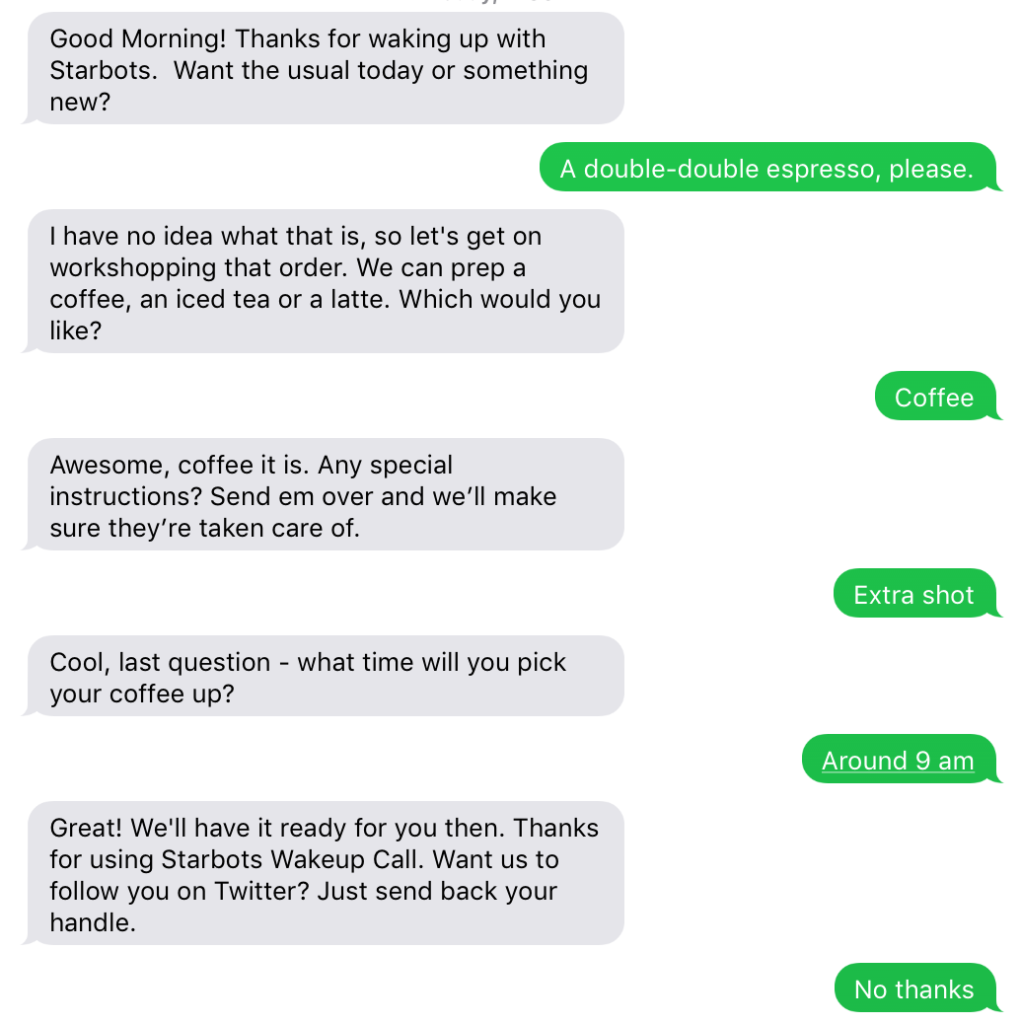
Mr. Borthwick make reference to Dexter which is (I think) a service that will help you develop a bot for your business (or whatever). You can see my chat session with their demo below. And if you’re feeling a little lonely…
Chat bots are going to become a thing in 2017, as Clem the CEO of Hugging Face, an awesomely interesting chat bot company says, “everyone, one day will have an AI friend”.
Back in the early days of online video, it was (for me) a three-step process. Shoot the video; edit the video; encode the video for uploading to (eventually) YouTube, Vimeo, Facebook, etc. And for a long time, encoding was a Dark Art. Lots and lots of hidden settings that — if properly optimized — resulted in a file that didn’t take 8 hours to upload and still look pretty good when streamed. I think most of that voodoo now happens behind the scenes and we mortals don’t have to think about it.
My net connection is via DSL and while it’s okay (8mbs) coming down, it’s damned slow going up, so even a short video can take a while to upload. To address the problem, I run my videos through a program called HandBrake. HandBrake is a tool for converting video from nearly any format to a selection of modern, widely supported codecs. It converts videos from nearly any format; it’s free and Open Source; and it’s Multi-Platform (Windows, Mac and Linux). And it’s free.
The program has been around for 13 years and I first used it to rip songs from CDs. Don’t have much call for that anymore but along the way I discovered it was really good at encoding video for streaming online. I won’t get into features here except to say the latest version has a bunch of handy presets. Experts can tweak and optimize to their heart’s desire.
I know, I know… this is getting long. I’ll hurry.
Yesterday I recorded a bit of a song I’m trying to learn and wanted to see what kind of video I could get recording directly to my iPhone using the built-in mic. Not all that great. And it was too big to email to my buddy Professor Peter, so I started playing with some of the new encoding presets in HandBrake. They had a few that appeared to be optimized for Gmail.
The original .mov file was about 224MB. The HB preset I usually use took that down to 69MB (1080p30). And the Gmail preset down to 15MB (720p30). I’m thinking, “That’s gonna look and sound like shit.” But when I compared the three, not to bad. Try to ignore the ‘vintage’ filter I mistakenly used (iMovie on my phone). Each of the samples is only 30 seconds.
I’m a sucker for apps like Comic Life. Probably won’t be writing a comic book (graphic novel?) anytime soon but I can amuse myself for hours with stuff like this. Much like tossing a ball of tin foil into a chimp cage.
When Peter Smith suggested this app I said “thanks” but was thinking, ‘Not gonna come close to the image I get with my flatbed scanner.’ But I gave it a try and… pretty damned close. Rather amazing. I’ll probably keep using my scanner for some of the really old stuff because I can control the resolution and use Pixelmator to ‘repair’ the image as needed. But most folks won’t fuck with all of that. With this app you could breeze through a shoebox full of old photos in no time. One final thought: this video is very well done.
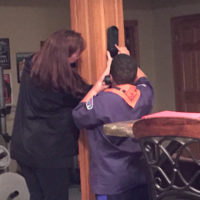 My friend Jason shared this photo taken at a Cub Scout meeting where the scouts learned how to use a landline telephone. He insists some of them had never used one. What’s to learn, you ask? What’s a “dial tone” and why do you have to wait until you hear it before dialing the number.