All my health data on iPhone app

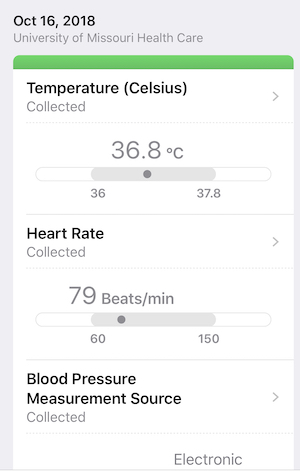
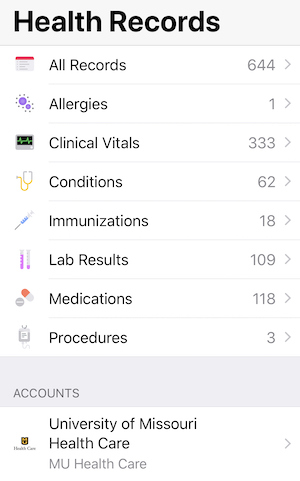
I’ve never paid much attention (or used) the Health app on my iPhone. Apple says it “consolidates health data from iPhone, Apple Watch, and third-party apps” to do all kinds of stuff. It has a “Health Records” section that I never did anything with until a couple of days ago when I learned I could sync my records (University of Missouri Health Care) to the Apple Health app.

I have about ten years of records stored in the MU Health system and can get to them via browser or iPhone app. But it took a little digging and I rarely had the need.

Within minutes all of my data was pulled into the phone app and I mean everything. More than 600 records (I’ve been pretty healthy). Immunizations, lab results, medications… the works. And much easier to navigate than the website and app I’d been using. So now I have all of my health records right there on my phone. Additional info.

Ten year old iPhone

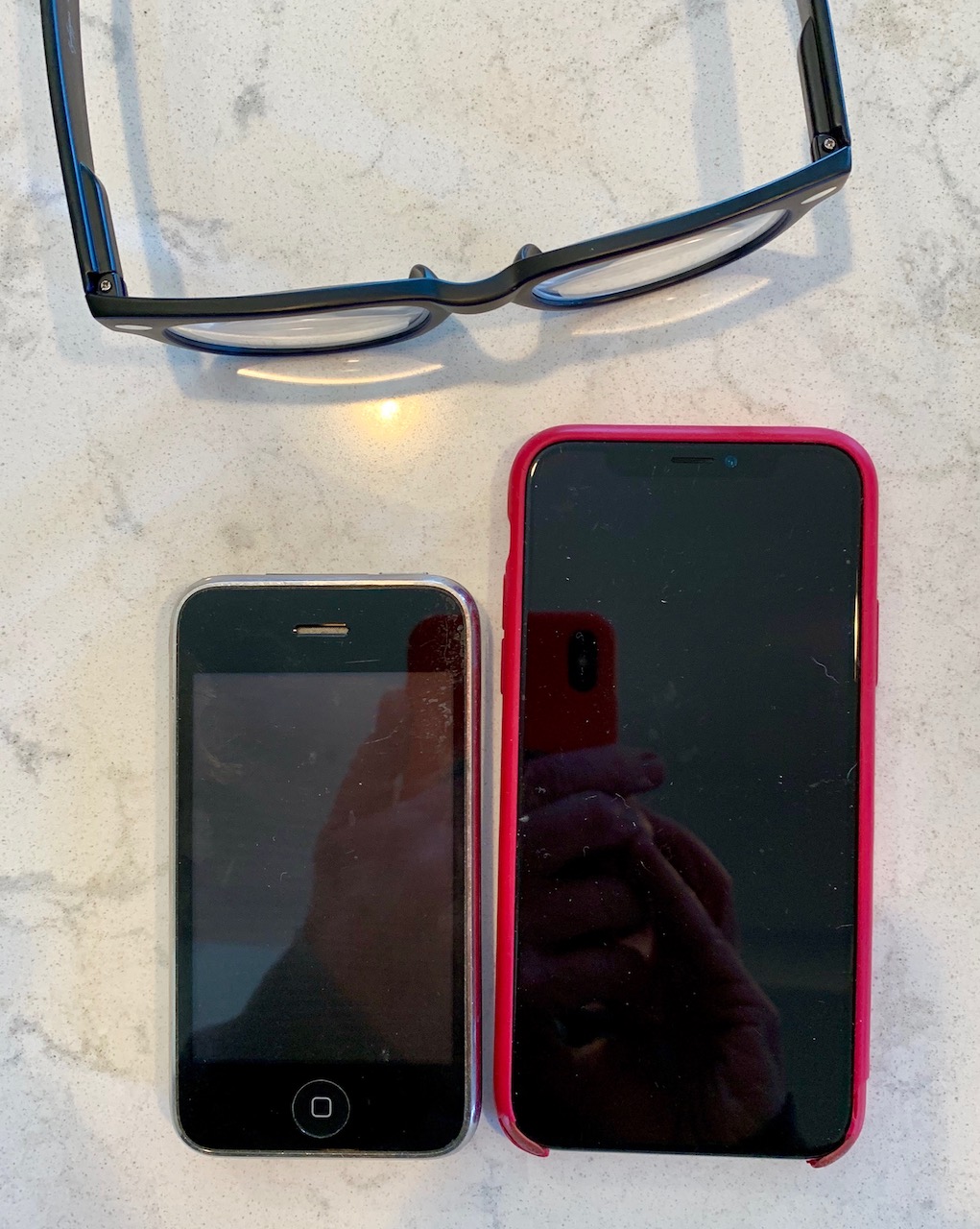
The phone on the left is a 3GS from 2009. Fits the palm of my hand. Barb found it in the back of a drawer. I’d forgotten how small the early phones were (the phone on the right is a XS). I still prefer the smaller phones but that ship has sailed.

TextGrabber

I’ve been using this app for years and thought I had posted on it previously but didn’t find anything. Pretty sure there’s an old screencast on YouTube but they’ve made numerous improvements. And I wanted to try out the screen recording feature in the new iPhone. More on that in a moment.

When I come across a long-ish passage in a book or magazine that I’d like to save, rather than just snap a photo, TextGrabber does some kind of OCR (optical character recognition) magic and gives you editable (and searchable) text.

As an aside, the screen recording above was done on the iPhone XS. Making screen recordings has gotten easier over the years but it was still a minor hassle to capture the screen on your phone. No longer. This feature is built right into the iPhone and it works great.

Face ID

From day-one I was happy with the iPhone’s Touch ID. So I was skeptical when Apple eliminated the home button (and Touch ID) and replaced it with Face ID. But works as advertised. It works so well I forget it’s working. And I guess I don’t care that much how it works. From iMore.com:

Face ID uses multiple neural networks that are built into the dual-core A11 bionic neural engine to process the facial recognition data. It takes a mathematical model of your face and checks it against the original scan of your face that you first registered.

The information is stored on the A11 chip on your iPhone X and not sent to Apple’s servers, so your facial identity is kept private.

It uses a Require Attention feature in order to work. That means you have to be looking at your iPhone for it to scan, You can’t be asleep or looking away for it to unlock your iPhone. […] It doesn’t work with photographs. It doesn’t work while you’re asleep. It doesn’t even work with detailed silicon masks that look just like you.

I tried to think of a way to make some sort of screencast to show how well this feature works but… there’s almost nothing to show. When my phone ‘sees’ my face — and only my face — it unlocks.

Screen Time

I’m fascinated by this new iPhone feature. Here are some of my stats for last 7 days:

  • 1 hr 14 min per day ‘on’ phone
  • Messages – 48 min/day
  • Gmail – 39 min/day
  • Google – 20 min/day
  • Phone – 20 min/day
  • YouTube – 19 min/day
  • Picked up my phone 268 times (avg 38 per day)

I think I’m probably a very light user. I’ll bet a lot of people would be shocked to see how much time they spend.

New iPhone camera flatters

When I look back at photos of my father, they tend to fall into two categories: solemn and goofy. His smiles often looked more like a grimace. The best photos of him are the the serious poses. Like pop, I’ve tended to mug for the camera for most of my adult life. I’m not one of those people who hate having their photo taken and readily concede that every one of them was “me” at that moment.

At 70, the camera shows me an old man that cannot possibly be me. The imaginary me that looks out of these eyes is a young guy. Who is that geezer in the mirror?! But maybe that will pass and the inner me will get comfortable with the guy walking around in this skin. Barb took this photo (with her iPhone X).

iPhone XS

Broke down and bought a new iPhone yesterday. My 6SE was two years old and the battery was fading noticebly. I loved the smaller form-factor of the SE and was hoping Apple would keep it around but, alas, the smaller phone is no more. The clincher was the camera on the new models (Barb’s photos from her Yellowstone trip were breathtaking).

Took a couple of photos this morning of Terry Bledsoe, a coffee shop regular. The portrait modes is impressive.

AirDrop

The following excerpts are from a piece by Joe Tonelli (AirDrop Is Your iPhone’s Most Underrated Tool). I love this feature and, like Joe, use it daily to move file between my phone and my laptop.

AirDrop is kind of a miracle. Without any internet connection or cell service whatsoever, you can still send documents, photos, videos, nearly anything, between any Apple devices, as long as they are physically relatively close to each other. You might think you need a wireless network or cell service to send things because your iPhone will prompt you to turn on wifi and Bluetooth before you use AirDrop, but that isn’t the case. Apple is simply using the wi-fi’s radio signal to cleverly create an encrypted peer-to-peer connection between the devices. Once Bluetooth senses another device nearby, you’re in business.

One of the best things about AirDrop is that there appears to be no file size limit. I don’t think the importance of that fact can be overlooked. Consider the other primary ways of sharing items between computers. Assuming you don’t have AirDrop, you’d likely email something to someone (or to yourself). Gmail’s file size limit is 25MB. So you go through Google Drive, fine. However you’re still stuck with the lengthy process of uploading and then downloading the (presumably large) file. Without a solid internet connection (pretty much anything less than LTE or a reliable wi-fi connection) this will be near impossible or take hours and hours. Sure, wireless internet is nearly ubiquitous these days but even in NYC there are places where I don’t get signal (or don’t want to connect to public wifi).

Of course there are Apple alternatives like AnySend or Deskconnect, and interspecies options like Zapya or Xender for you Windowsheads out there. They largely accomplish the same thing, and I’m sure that software all works fine. But AirDrop is already on your damn phone.
iPhone X Photos

Barb’s only had her iPhone X for a few days and is still getting the hang of new features. Today she played with some of the new photos options. Don’t know how they’ll look here but on my laptop (and her phone) they looked damned good. Not sure which setting were used for each photo but I can tell you I’ve never seen a photo taken with a phone that was this crisp and sharp. The new iPhones are just larger than I like so I’m hoping these new camera features come to some future SE model.